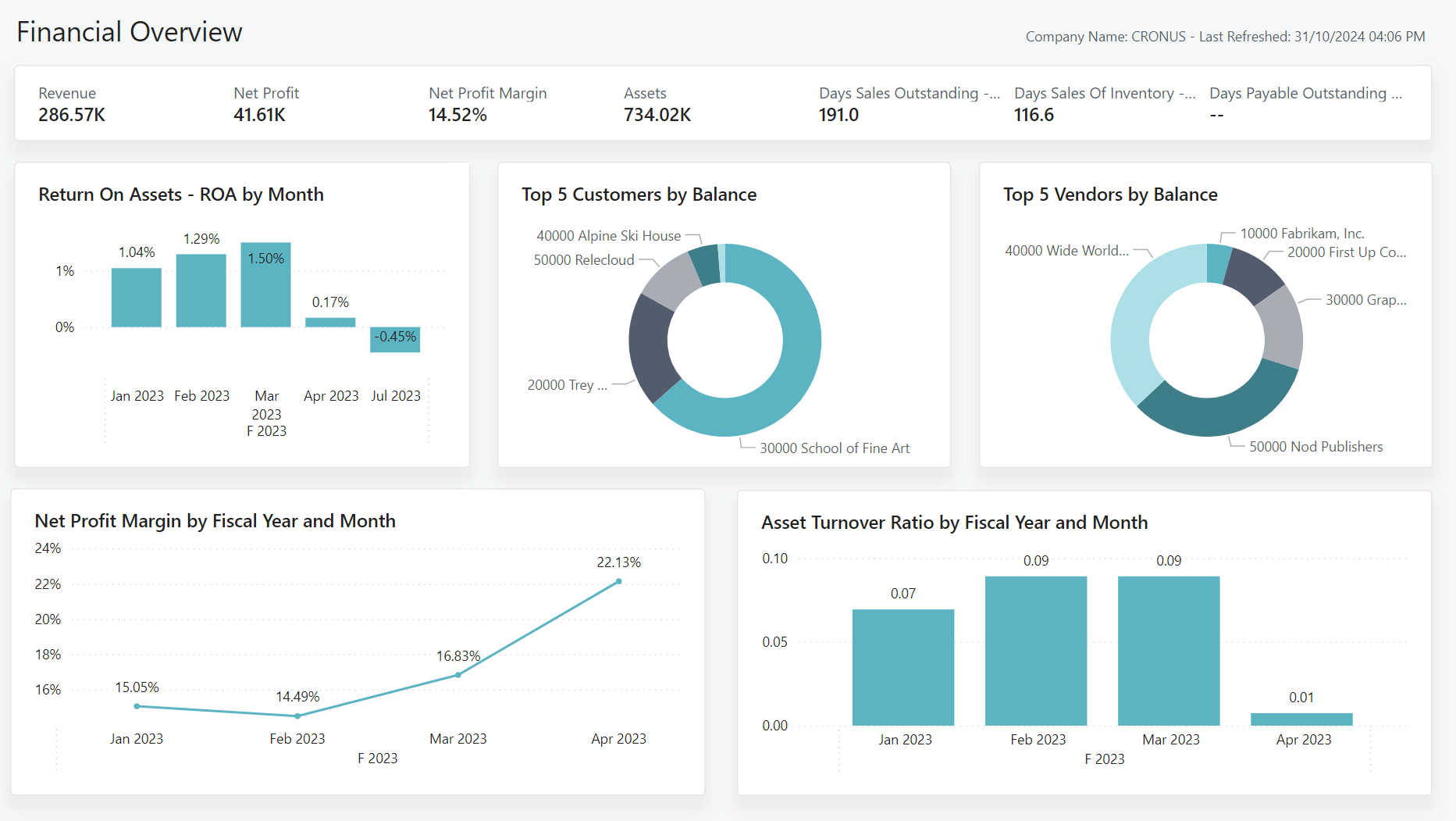
Business Central contains a significant amount of financial data. Power BI is Microsoft’s tool for turning data into visual, interactive dashboards. The integration between the two — which is built natively into Business Central rather than requiring a third-party connector — allows finance teams to build real-time dashboards that give directors and managers live visibility of the financial and operational metrics that matter to them.
This post explains how the integration works, what kinds of dashboards are genuinely useful in practice, and what it takes to get meaningful results rather than charts for the sake of charts.
How the Integration Works
Business Central publishes data to Power BI through a set of standard API pages — structured data endpoints that expose financial transactions, balances, customer and vendor data, inventory, and other core datasets in a format Power BI can consume. A Power BI report connects to these endpoints using either Direct Query (which pulls live data on demand) or Import (which caches a scheduled data snapshot).
Microsoft also provides a set of standard Power BI content packs for Business Central — pre-built report templates covering finance, sales, purchasing, and inventory — that give a starting point for organisations that want dashboards without building them from scratch. These standard templates are useful as a baseline, but most organisations find they need to customise or extend them to reflect their specific chart of accounts structure, dimension framework, and management reporting requirements.
The connection is configured from within Business Central itself: a user with the appropriate permissions authorises the Power BI connection, and the available report pages appear directly within the Business Central interface as embedded reports. Users do not need to leave Business Central to access their dashboards — the Power BI report surfaces inside the relevant Business Central page.
What Makes a Useful Financial Dashboard
The most common mistake in financial dashboard projects is building too many charts and not thinking carefully enough about what questions the dashboard needs to answer. A dashboard that shows twenty different metrics in small tiles does not give a director actionable information — it gives them a wall of numbers that requires interpretation to be useful.
The most effective financial dashboards we help clients build are designed around a small number of specific questions: What is our cash position today? Are we on track against budget this month? Which customers have overdue balances? What is our gross margin by product line this period? Each of these questions maps to a specific visualisation, and the dashboard is built around those visualisations rather than around all the data that happens to be available.
Dimensions in Business Central — the ability to tag transactions with department, project, cost centre, or any other analysis code — are what make segmented financial reporting possible in Power BI. A Business Central environment that has been configured with a well-designed dimension structure from the outset gives Power BI the granularity to slice P&L by business unit, show project profitability, or compare performance across regions. A Business Central environment configured without dimensions, or with inconsistently applied dimensions, limits what Power BI can meaningfully show.
Common Dashboards We Build for Business Central Clients
CFO dashboard. A single-page view of group cash position, month-to-date P&L versus budget, debtor days, creditor days, and overdue invoices by value. Designed to give the CFO the key financial health indicators in one place, with drill-through to the underlying transactions for any figure that requires investigation.
Sales performance dashboard. Revenue by customer, by product category, and by period, with comparison to prior year and budget. Margin by product line. Outstanding order book value. Overdue and at-risk debtor balances. Designed for commercial directors who need financial context without accessing Business Central directly.
Operations dashboard. Inventory value by location, slow-moving stock by age band, open purchase orders by expected delivery date, production order status. Designed for operations and supply chain managers who need to understand the stock position and procurement pipeline.
Project profitability dashboard. For professional services businesses, a view of project revenue, costs, and margin by project and project manager, with WIP values and billing status. Replaces the manual project profitability spreadsheets that most project-based businesses maintain alongside their accounting system.
Getting the Foundation Right
Power BI dashboards are only as good as the data behind them. Before building dashboards, Finsys Apps reviews the Business Central configuration — chart of accounts structure, dimension setup, and data completeness — to identify any gaps that would limit the quality of the reporting. Fixing the foundation before building the dashboard saves significant rework later.
If you are interested in what a Power BI integration with your Business Central environment could look like, speak to the Finsys Apps team. We can discuss your specific reporting requirements and give you a clear picture of what is achievable.